
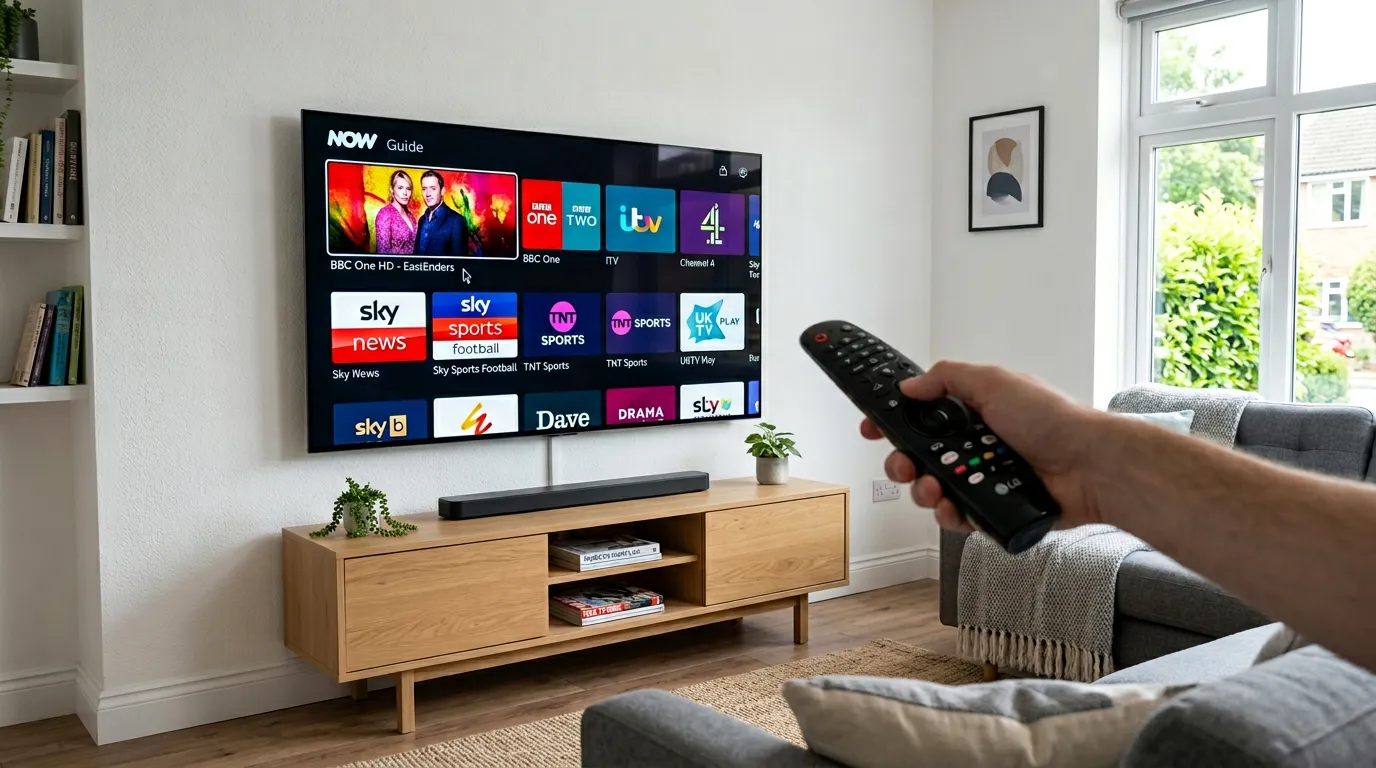
LG smart TVs are everywhere in UK homes, and for good reason — great picture quality, smooth webOS interface, and a remote that actually makes sense. What most LG owners do not realise is that their TV can run IPTV straight out of the box. No Firestick. No Android box. Just your LG TV and a few minutes of setup.
If you have been paying Sky or Virgin Media every month and wondering if there is a cheaper way to get the same channels and more, this is it. Here is everything you need to set up IPTV on LG TV in the UK.
Which LG TVs Support IPTV?
Any LG smart TV running webOS supports IPTV through third-party apps. That covers every LG smart TV sold from about 2015 onwards. The newer your TV, the smoother the experience — webOS 6 and above handle IPTV apps particularly well.
Older LG TVs running Netcast may have limited app support, but even those can sometimes run Smart IPTV through a workaround. If your TV connects to the internet and has the LG Content Store, you are good to go.
Best IPTV Apps for LG TV in the UK
Smart IPTV is the most popular choice for LG webOS TVs. It is available in the LG Content Store, loads quickly, and handles large channel lists without struggling. The interface is basic but effective — channels are listed clearly, the EPG works, and switching between channels is fast. Smart IPTV charges a small one-off activation fee of around five pounds after a trial period.
IPTV Smarters Pro is the more feature-rich alternative. It supports Xtream Codes login, has a better-looking interface, includes VOD browsing, and lets you set up multiple profiles if different people in your household watch different content. Availability on the LG Content Store varies by region, so check yours first.
SS IPTV is another option that some LG users prefer. It is free and supports M3U playlists directly. The interface is a bit dated, but it works reliably and does not cost anything.
How to Install and Set Up IPTV on LG TV
Here is the exact process using Smart IPTV, which is the method most UK users go with.
Press the Home button on your LG remote and open the LG Content Store. Search for Smart IPTV. Install it.
Open the app. It will show your TV’s MAC address on screen. Note it down — you need it for the next step.
On your phone or computer, go to the Smart IPTV activation website. Enter your TV’s MAC address and paste in the M3U URL that your IPTV provider sent you when you subscribed. Save the settings.
Go back to your LG TV and restart the Smart IPTV app. Your entire channel list will load within seconds. Navigate using the LG Magic Remote — the pointer works perfectly with Smart IPTV’s interface.
That is the entire setup. No sideloading, no developer mode, no USB sticks. If you have not chosen an IPTV service yet, our IPTV cost UK guide breaks down what you should expect to pay.
Making IPTV Look Its Best on LG
LG OLED and NanoCell panels are some of the best screens on the market. Here is how to get IPTV looking as good as possible on them.
Set your picture mode to Cinema or Filmmaker Mode. These modes disable unnecessary processing that can introduce input lag and colour inaccuracy. For live sport, you can enable TruMotion at a low setting to smooth out fast-paced action — but turn it off for films and series.
Use a wired ethernet connection. LG TVs have an ethernet port and plugging in a cable makes a genuine difference to stream stability. WiFi works, but ethernet eliminates the inconsistency that causes buffering during peak hours.
If you are streaming in 4K, make sure your broadband delivers at least twenty-five megabits per second. You can test at Speedtest.net. Anything above that and your LG TV will display stunning 4K IPTV content without a hiccup.
Already Tried IPTV on LG and Had a Bad Experience?
A lot of people try IPTV on their LG TV, have a terrible time with buffering or missing channels, and write the whole thing off. But the problem is almost never the TV or the app — it is the service behind it.
Cheap providers running overloaded servers will make any setup look bad. If your previous experience with IPTV on LG was frustrating, it is worth trying a provider that actually supports webOS properly.
Golden TV is one that LG users in the UK keep recommending. Clean playlist formatting that loads properly on Smart IPTV, an EPG that actually fills in, and streams that hold up during Saturday night football. If your last attempt at IPTV on LG left you disappointed, give them a shout on WhatsApp and try a test before you give up on the idea entirely.

Troubleshooting IPTV on LG TV
Smart IPTV not appearing in LG Content Store: This happens occasionally. Try searching by scrolling through the Entertainment or Video category manually. If it still does not appear, your TV’s region settings might be blocking it — try changing the store region to UK in your LG account settings.
Channels loading slowly: Clear the app cache through LG Settings > Apps. Also try reducing your channel list size — some providers let you request a UK-only playlist which loads much faster than a full international list.
Audio out of sync: This is usually caused by your TV’s sound processing. Go to Sound Settings and disable any audio enhancements or virtual surround features. Set the output to PCM instead of Auto if using the TV’s built-in speakers.
Black screen when selecting a channel: The stream format might not be compatible. Try switching to a different channel and then back. If specific channels consistently show a black screen, report it to your IPTV provider — it usually means that channel’s stream URL needs updating on their end.
For more detailed fixes, our IPTV buffering fix UK guide covers every common issue.
Frequently Asked Questions
Can I use IPTV on LG TV without a Firestick?
Absolutely. LG webOS smart TVs support IPTV apps natively through the LG Content Store. A Firestick is only necessary if your LG TV is very old or does not have a working app store.
Is Smart IPTV free on LG TV?
It offers a short trial period, then requires a one-off payment of around five pounds. This unlocks the app permanently on your TV.
Can I watch UK sports through IPTV on my LG TV?
Yes. A good IPTV service includes Sky Sports, TNT Sports, BT Sport, and all free-to-air UK channels. Live sport streams work well on LG TVs when you have a stable internet connection of at least fifteen megabits per second.
Does the LG Magic Remote work with IPTV apps?
Yes. The pointer function of the Magic Remote works perfectly with Smart IPTV and IPTV Smarters Pro. You can also use the directional buttons and scroll wheel for faster channel navigation.
How many channels can I get through IPTV on LG TV?
This depends on your IPTV subscription. Most UK-focused services offer between five thousand and twenty thousand live channels including UK, European, and international content. Check our IPTV channels UK guide for a full breakdown.
Will IPTV slow down my LG TV?
No. IPTV apps use a small amount of your TV’s processing power. Modern LG TVs handle them easily. If your TV feels sluggish, try clearing the app cache or restarting the TV.
Final Word
LG smart TVs and IPTV are a natural fit. webOS is smooth, the app support is solid, and the picture quality on LG panels makes IPTV content look fantastic. Whether you are watching the football, binging a series, or letting the kids loose on their own channels, your LG TV handles it all.
Stop paying Sky prices for a fraction of the content. Set up IPTV on your LG TV this evening and see the difference for yourself.
For a broader view of what services are available, see our best IPTV service in UK guide and our IPTV providers UK comparison.
This website is for informational purposes only. We may recommend third-party services based on user feedback and testing. All trademarks belong to their respective owners.